You’ve been told your website has no Content Security Policy, and you need to know what to check. Content Security Policy (CSP) is a set of rules your site sends to browsers. The rules control what a page may load or run and limit certain actions.
Start by checking which CSP rules your pages send and listing the tools they load. You don’t need to write the rules yourself: your developer, web agency, or IT team makes and tests the changes. Your role is to explain which website features and marketing tools need to work. CSP is an extra safeguard, not a repair for weaknesses in your website’s code.
CSP controls which resources, such as scripts and images, a page may load or run. When a policy is enforced (turned on to block), the browser stops actions that break its rules. The W3C Content Security Policy Level 3 specification describes this behavior.
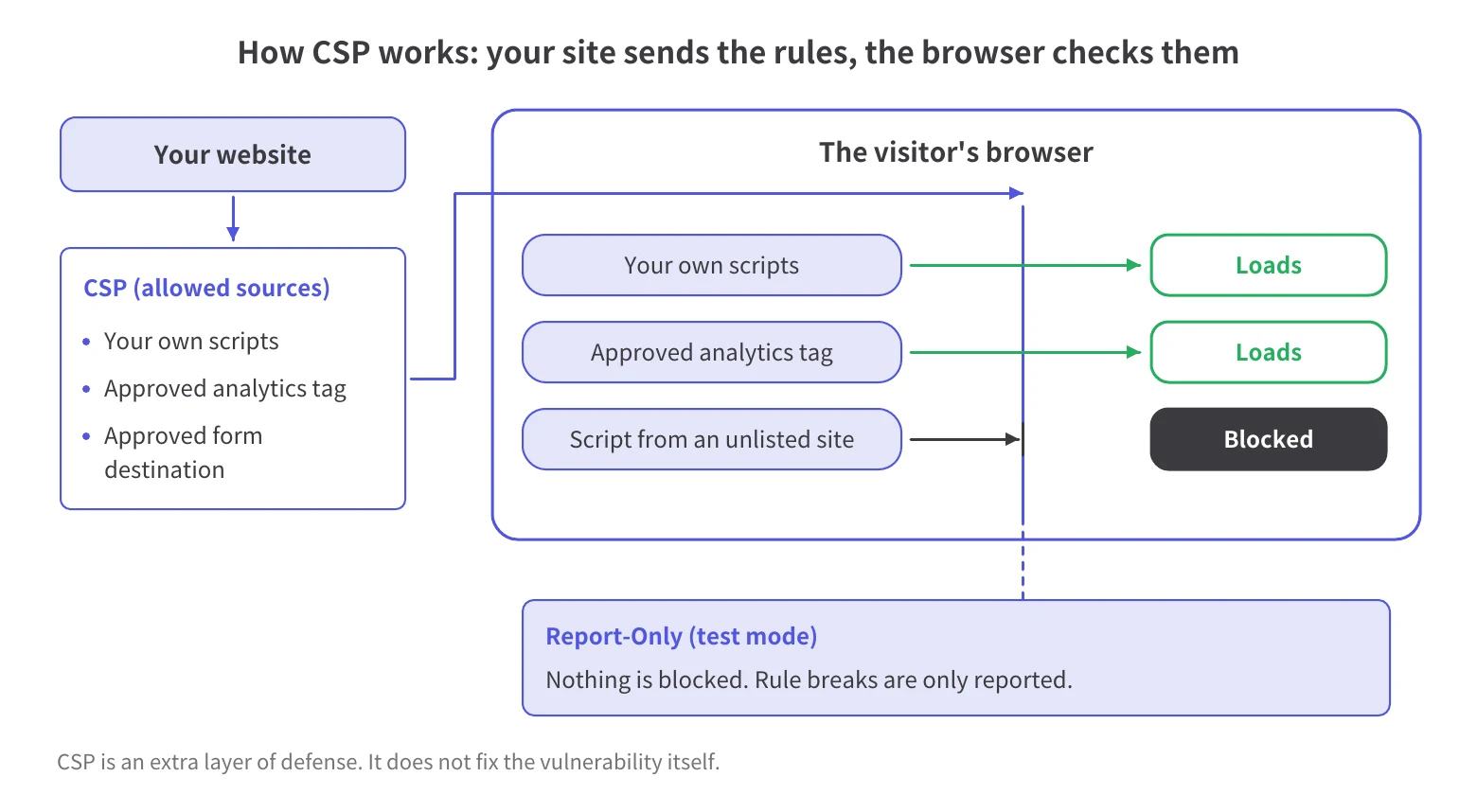
CSP can help limit attacks that inject unwanted code into a page, often called cross-site scripting (XSS). It can also limit where forms send information and which other sites may show your page inside their own pages. That helps protect against clickjacking, where visitors are tricked into clicking something on your page while it’s hidden or disguised inside another site.
Treat CSP as a second layer of defense. It doesn’t fix weaknesses in your website’s code or problems on your server. You also can’t rely on it to stop harmful code from a place your rules already allow.
Website scripts are written in JavaScript, a programming language that runs in visitors’ browsers. CSP is only one part of keeping scripts safe; see JavaScript security practices beyond CSP for the rest.
Response headers are settings your server sends alongside a page. A meta tag is a line of code inside the page’s HTML, the code that structures the page. It can also carry CSP rules.
Table A. Ways to deliver CSP: response header or meta tag
These limits are documented in W3C’s meta-tag rules and MDN’s report-to reference. Ask your developer to use response headers where possible.
A CSP header is the Content-Security-Policy response header: a line your server sends with each page that lists the rules. Use your browser’s built-in developer tools to examine the page’s response headers. Check whether the page has rules that block actions, rules that are only being tested, or both.
Open the page, then open your browser’s developer tools. Find the panel that lists everything the browser requests to load the page (in Chrome, it’s called Network). Reload the page and select the entry for the page itself.
In Chrome, you may see a Headers tab and a Response headers section. Names and placement can differ by browser version; Chrome’s network inspection documentation provides the general workflow.
Look for these two names:
If both appear, the blocking policy still applies. MDN’s Report-Only reference explains how the two work together.
If neither appears, ask your developer to check for a meta-tag policy in the page’s code. Checking one page doesn’t tell you how CSP is set up across your entire website.
The console in your developer tools is a message log, and it can show CSP problems. Tell your developer which page you were on and what you were doing. The wording of these messages varies.
Your developer can use CSP Evaluator to review policy weaknesses. It isn’t an official Google product or a guarantee of safety.
SiteScan checks whether your site has a CSP. It treats a site with only Report-Only rules as having no CSP, but it counts a CSP set in a meta tag. Ask your developer to review the policy itself. Having a CSP alone doesn’t mean your site is safe.
Start with the scripts your website needs, then have your developer draft, test, and apply the rules. Finding a script or connection on your site doesn’t automatically mean it should be allowed.
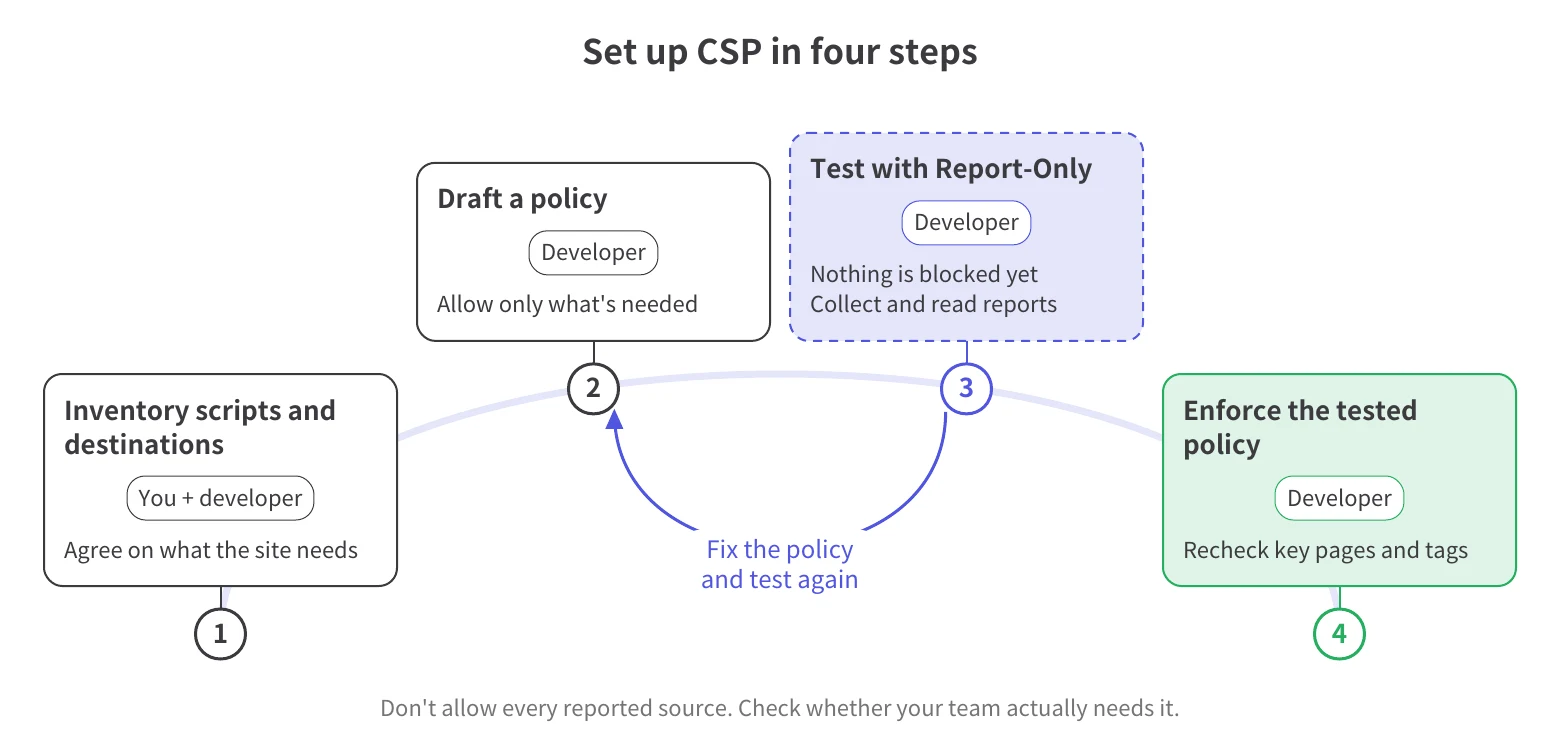
List the JavaScript, tools from other companies (third-party tools), and tags your pages load. Tags are small pieces of code that tools such as analytics platforms add to your pages. Record their purpose, where they send data, and who on your team can confirm they’re needed.
SiteScan supports this inventory, including where tags send data. For pages behind a login and other non-public pages, the SiteScan tag must be installed through Google Tag Manager (GTM), a tool for managing website tags.
Your team decides which tools to keep. For that discussion, see how to review third-party script risks.
A CSP directive is an individual rule within the policy. The table below covers five common rules as a starting point for discussing requirements with your developer; MDN documents each rule.
Table B. Rules to discuss with your developer
Your developer should evaluate rules that use a nonce or a hash to approve specific scripts. A nonce is an unpredictable, one-time value your server creates each time it sends the page, so the browser can recognize approved scripts. A hash is a fingerprint calculated from a script’s exact contents.
MDN’s CSP guidance recommends these approaches. The same guide advises against 'unsafe-inline', which allows code written directly inside a page, because that weakens CSP protection.
The table isn’t a complete policy to copy into your site.
Report-Only is a test mode: the browser reports what would be blocked, but blocks nothing. Have your developer send the proposed rules through the Report-Only header and configure a destination for reports.
Test the website actions your business relies on. Any CSP rules already set to block keep blocking during this test.
Review reported problems with your developer and the people responsible for affected tools. Adjust the policy or site code as needed, then test again before turning on blocking.
When you brief your developer, cover these items:
Content Security Policy Report-Only testing shows which actions would break your proposed rules, without blocking anything. Collecting those reports requires a destination; the header alone isn’t enough.
A reporting endpoint is the web address that receives browser reports. Your developer needs to prepare that destination and connect it to the policy.
The Reporting-Endpoints header lists where reports can go, and the CSP rule report-to picks which one to use. MDN’s Reporting-Endpoints reference describes this relationship.
The older report-uri method is deprecated, meaning it’s being phased out. Even so, current reporting guidance recommends including both report-uri and report-to so reports arrive from more browsers. Your developer should check which methods work in the browsers your site needs to support.
Seeing a message in the browser’s console is different from collecting reports at a destination. Ask your developer to confirm that reports actually arrive during testing.
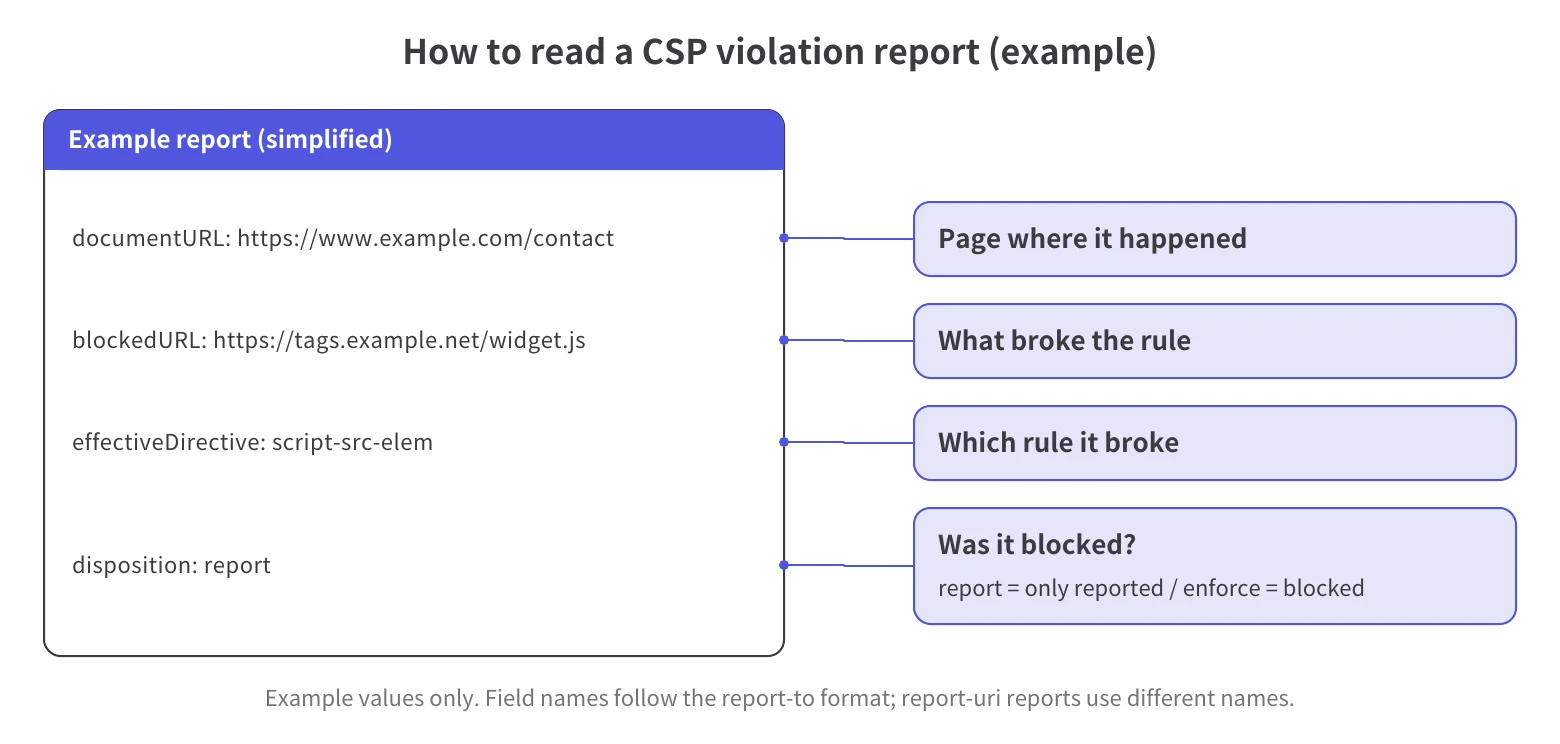
A violation means an action breaks a policy rule. It doesn’t, by itself, prove that an attack occurred.
For reports sent through report-to, look for these labels:
documentURL: the page where the issue occurred.blockedURL: the address of what was blocked, or would have been blocked in test mode. For code written directly inside the page, it shows the word inline instead of an address.effectiveDirective: the name of the rule that was broken.disposition: whether the report concerns blocking mode (enforce) or testing mode (report).Reports sent the older way (report-uri format) use hyphenated names for the first three labels: document-uri, blocked-uri, and effective-directive. They mean the same things. The disposition label keeps its name.
Open key pages, submit your forms, and check that analytics and marketing tools still work. Your developer should also check the reports: a tool can work during Report-Only testing and still fail once blocking starts. Record what you did so your developer can repeat a failing action.
If you use GTM, include CSP considerations for Google Tag Manager in the review.
A report may reveal a legitimate tool that needs attention. Confirm its purpose before allowing its code or connections, then address the reported issues and test again.
Review CSP whenever your team adds or changes scripts, tags, or third-party tools. Confirm that required features still work and that permissions still match what the business needs.
Compare the current script inventory with earlier versions. Review changes to both the code your pages load in the browser and the destinations that tags contact.
SiteScan supports version history (a record of how scripts change over time) and continuous monitoring of script changes. Review those changes with your developer to decide whether CSP needs updating.
Decide who confirms why a tool is needed, who reviews technical findings, and who changes the settings. Write the answers down so changes don’t fall through the cracks.
For that ongoing process, see how to maintain a script inventory and monitor changes.
SiteScan provides information for your review; your developer, web agency, or IT team changes the CSP settings.
You can check CSP and discuss how to add it without writing the rules yourself.
You can check in your browser’s developer tools, the built-in tools for inspecting a page. Response headers are the settings your server sends with the page. Look in these headers for Content-Security-Policy (rules that block) or Content-Security-Policy-Report-Only (rules that are only being tested). If neither appears, ask your developer whether the rules are written into the page’s code instead.
You can test it first. Your developer can run the rules in Report-Only, a test mode where the browser reports what the rules would block but blocks nothing. Blocking starts only when your developer switches the tested rules on, although any blocking rules your site already has keep working during the test. Problems also show up in the browser’s console, a message log in the developer tools. To collect reports from visitors, your developer sets up an address that receives them.
Yes, but with limits. A meta tag is a line of code inside the page’s HTML, and rules written there only cover what comes after it. A meta tag also can’t run the rules in Report-Only test mode or control which other sites can show your page inside theirs. When possible, ask your developer to deliver CSP through response headers, the settings your server sends with each page.
Yes, the browser can stop a tool from working if the rules don’t allow its code or the places it sends data to. That’s why your developer should first run the rules in Report-Only and check key pages, forms, and analytics. This test mode reports problems without blocking anything. Before approving anything the test flags, confirm that your business actually needs that tool.
No. SiteScan doesn’t create, configure, or enforce your CSP. It checks whether your site has a CSP and helps you inventory the scripts your pages load in the browser. Your developer, web agency, or IT team makes and tests the configuration changes.

Crecimiento de MFA, riesgos de fraude impulsados por IA y cómo los principales anunciantes protegen sus presupuestos. PDF gratuito.