Your website has been flagged for “missing security headers”—now you need a clear request to send your developer. Every time a browser asks for a page, your website sends back an HTTP response. Security headers are named instructions in that response (technically, HTTP response headers). Each one tells the browser how to handle your site's content and connections.
A list of unfamiliar names or a low score doesn't tell you which changes your website needs. Your job is to gather the findings and explain which website features must keep working. Your developer, web agency, or IT team can then review the settings and test any changes. Start with the checklist below, and keep a record you can use again after the work is done.
Start with these seven: Strict-Transport-Security (HSTS), Content-Security-Policy (CSP), X-Content-Type-Options, X-Frame-Options, Referrer-Policy, Permissions-Policy, and Cross-Origin-Resource-Policy (CORP). They control connections, content loading, and browser behavior, and each has a different job, so review what your site needs before asking your team to change one.
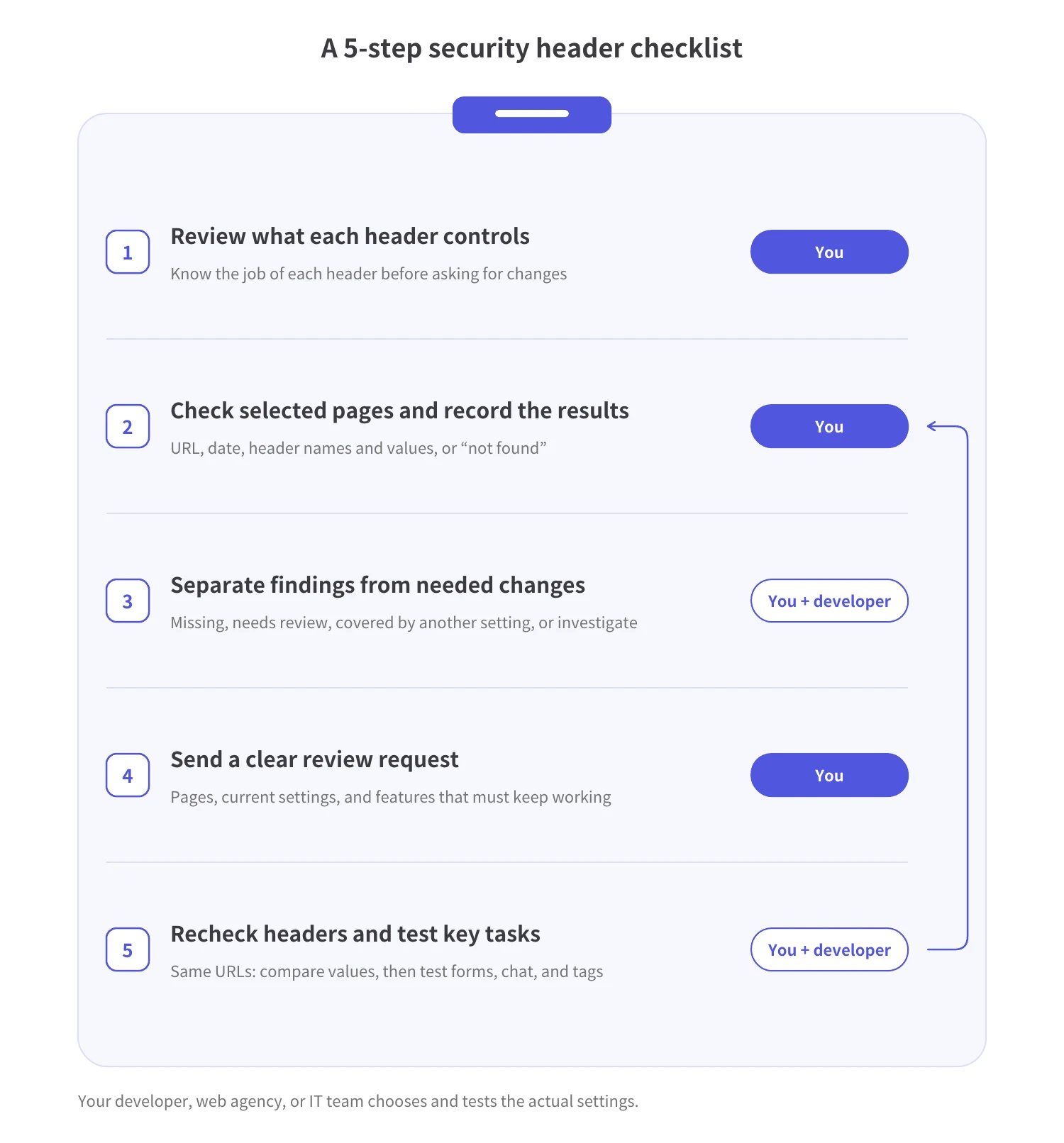
Work through the checklist in five steps:
SiteScan, Spider AF's tool for reviewing the scripts and tags that load on your website, also checks six of these seven headers on the pages it covers. In the SiteScan column, “Checks presence” means SiteScan checks whether the header is present. “Checks presence and value” means SiteScan also checks whether the value is valid. SiteScan doesn't check Permissions-Policy.
The OWASP HTTP Headers Cheat Sheet warns that incorrect HSTS settings or expired certificates can lock legitimate visitors out. Before including subdomains or using preload, have your developer confirm that HTTPS works everywhere the HSTS setting will apply.
Recommendations also differ by source. The Cheat Sheet and the OWASP Secure Headers Project recommend different values for Referrer-Policy and CORP. Your developer should choose settings based on your site's requirements.
Your developer may also consider two other headers. Cross-Origin-Opener-Policy (COOP) can separate a page from the window that opened it. Cross-Origin-Embedder-Policy (COEP) sets rules for loading cross-origin content. “Cross-origin” means from another website or address: a different domain or subdomain, a different protocol (http or https), or a different port (the number that can follow a domain, as in :8080). Neither is required for every site.
Pick a few pages and record exactly which URL each result describes. Compare the checker's findings with the response headers your developer can inspect in the browser.
Start with your homepage, a page with a form, and examples of your main page types. For a public page, an online security headers checker can provide a starting report.
Save these details (your developer can fill in any you can't see):
SiteScan checks six of the seven headers in the table on the pages it covers. Pages behind a login or other non-public pages need the SiteScan tag installed through Google Tag Manager. Bring those results to your developer.
One CSP detail: SiteScan counts a policy set through a meta tag (a line in the page's own code rather than a response header) as present. If only Content-Security-Policy-Report-Only is set (the test mode described in the table), SiteScan counts that as no CSP.
Ask your developer to capture the page's response headers with the browser's developer tools (the built-in panel developers use to inspect a page). Keep this evidence with the checker report so your team can compare the findings with the actual settings.
Missing headers and low scores from external checkers are a cue to review your settings. A score only reflects what that checker looks at. It doesn't tell you whether someone has broken into your site, and it doesn't prove the whole site is secure.
Before choosing any changes, ask your developer to check whether another setting already covers the same risk, and what the browser does by default. Use this worksheet to separate what the tool found from what your team needs to decide.
CSP and X-Frame-Options show how settings can overlap. When an enforced CSP (one that blocks actions that violate its rules) contains frame-ancestors, X-Frame-Options is ignored, as the W3C CSP specification explains. The frame-ancestors rule doesn't work in a meta tag. To go deeper on CSP, see how to review and test a Content Security Policy.
Some older checklists still list one more header. The X-XSS-Protection header is no longer recommended, and MDN warns that it can create security problems on otherwise safe sites. Set it to 0 or leave it out. Don't add it just to satisfy an old checklist.
SiteScan provides header check results you can use to fill in this worksheet. SiteScan checks whether X-Content-Type-Options is set to nosniff and whether CORP has a valid value. For CSP, SiteScan checks whether a policy is present, not how strong it is. Your developer decides which settings your site needs.
You don't need to name the changes yourself. Send your findings together with the website functions that must keep working, and ask for a review. Your developer, web agency, or IT team should choose and test any changes.
Copy the table below into a work ticket or email, then replace each bracketed item with your details.
Flag three decisions for your developer:
If Google Tag Manager manages your tags, review security practices for Google Tag Manager. In the request, list the tags and outside tools your team needs to keep working.
After changes, verify the header values and test the website tasks your visitors rely on. A better score from an external checker doesn't replace checking forms, chat, tags, and embedded content.
Recheck the same URLs and compare the results with your original record. Ask your developer to confirm that the settings match the agreed changes, then record whether the affected functions still work.
Here are two examples (not real results):
Run SiteScan's header checks again on the same pages, and save the results alongside your developer's record of the actual header values and the results of testing your website's features.
SiteScan also builds an inventory of the JavaScript (code that runs in the browser), third-party tools, and tags on your pages, including where tags send data. It supports version history and continuous monitoring of script changes. Learn how to inventory scripts and monitor changes over time.
SiteScan doesn't set, change, or enforce headers, block attacks, or fix code, and it doesn't scan the server-side code behind your website.
Security headers are HTTP response headers that give browsers rules for handling your website's content and connections. Different headers address different concerns, such as HTTPS connections, resource loading, and page embedding.
For a public page, you can start with a security headers checker and share its findings with your developer or web agency. Have that team review the response headers and decide which changes fit your site.
No. A score reflects the settings assessed by that checker, so use it alongside other reviews rather than as proof that your whole website is secure.
No. Your settings need to account for the resources, browser features, and embedding behavior your website requires, so have your web team review them.
Your developer, web agency, or IT team should make the configuration changes. Share the affected URLs and findings, then agree on how to verify the headers and test key website functions afterward.

Crecimiento de MFA, riesgos de fraude impulsados por IA y cómo los principales anunciantes protegen sus presupuestos. PDF gratuito.